What is a Headless Browser?
What is a Headless Browser?
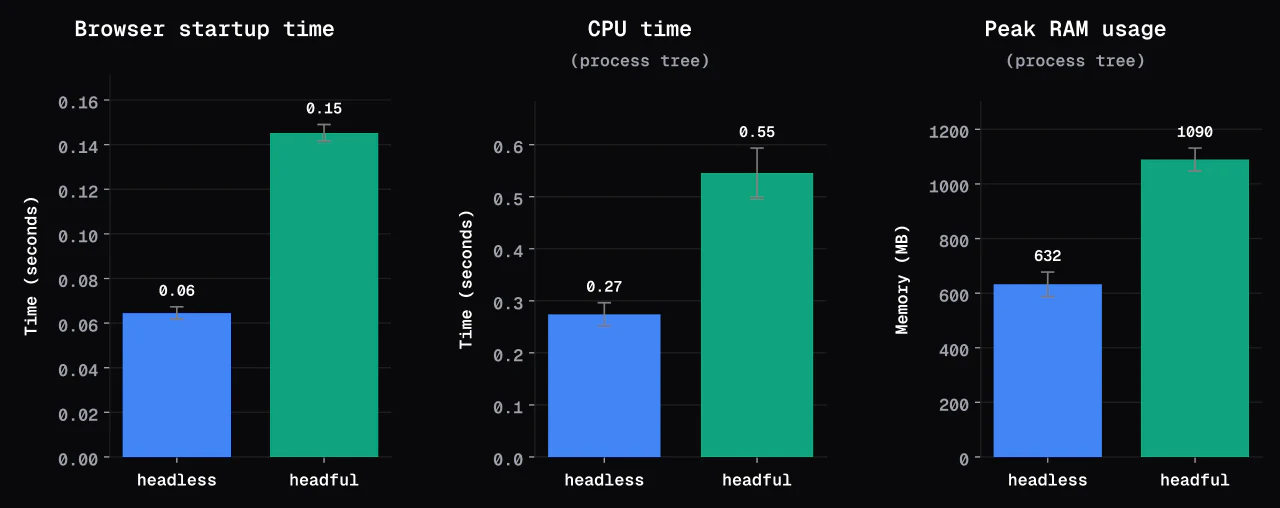
A Headless Browser is a browser without a graphical user interface, controlled programmatically for automation testing, web scraping, etc. It has become popular due to the adoption of AI browser agents. Headless Chromium starts 60% faster than normal mode, uses 51% less CPU, and has a 42% lower peak RAM.
A headless browser is a browser that runs without a graphical user interface (GUI). Instead of being controlled by users, they are designed to be controlled programmatically.
Over the past two decades, headless browsers have been primarily used for automation. This includes automated tests, web scraping, data extraction, and screenshot generation. Recently, however, they've surged in popularity due to their adoption by AI browser agents.
Headless vs Headful Browser
Headless browsers are basically just traditional web browsers running without a user interface. They support most of the core functionality of traditional web browsers. That includes parsing HTML, loading CSS, executing JavaScript, rendering content, and using local storage.
Chrome, Chromium, and Firefox all support both headless and headful modes.
The two main benefits of headless browsers are that they can run on servers (no need for a display) and that they can reduce resource costs. This makes them great for running at scale, including in containers, cloud VMs, and CI/CD pipelines.
To get a rough estimate of how much faster headless browsers are, I ran a simple benchmark.
In this benchmark, headless Chromium started around 60% faster, used 51% less CPU time, and used 42% less peak RAM. Page load times were similar. These results depend on the workload and environment.
You can read more about the test in the benchmark repository.
Headful browsers are useful for debugging because you can watch the browser as it runs. Modern Chrome shares its browser implementation between headless and headful modes, so a visible window is not inherently required for GPU support or accurate rendering. Output still depends on the browser version, fonts, viewport, and environment.
A common misconception is that headless browsers are more automatable than headful browsers. Both modes can be automated; headless is a common choice for unattended runs because it doesn't need a display.
Here's a table summarizing the differences between the two browser modes:
| Headless | Headful | |
|---|---|---|
| Primary use | Automated testing, CI/CD pipelines, scraping | Local development, debugging |
| Performance | Lower startup and resource costs in our benchmark | Higher startup and resource costs in our benchmark |
| Automation | The default choice, appropriate for scale | Useful for testing before switching to headless mode |
| Screenshots & recording | Generates screenshots, PDFs, and recordings through automation tools | Supports captures with a visible browser for inspection |
| Debugging & observability | Requires instrumentation | Gives you live visual view and the ability to use DevTools |
| Bot detection resistance | Depends on browser configuration, network, and behavior | A visible window alone does not prevent detection |
Looking for better resistance to bot detection? Browser Use offers stealth browser infrastructure designed for running browsers at scale. See the Browser Infrastructure quickstart to launch a browser and connect your code.
How Headless Browsers Work
A headless browser doesn't have a visible window. There are no buttons to click, text inputs to fill out, or a mouse cursor to move visually. So how do you control it?
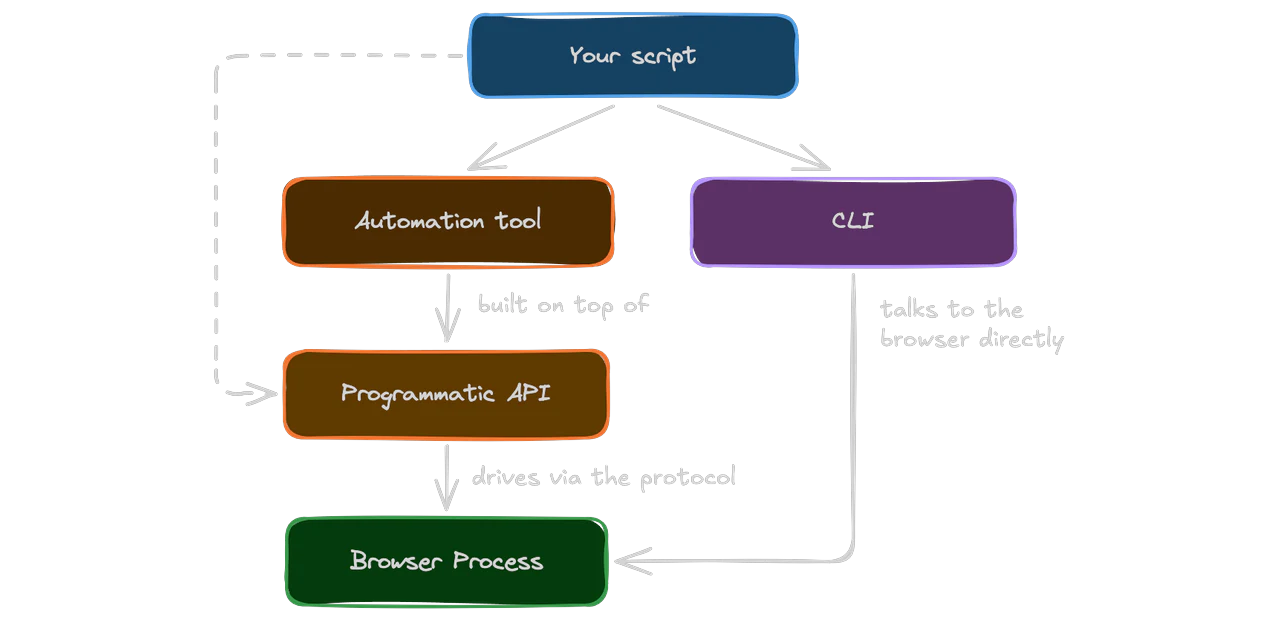
Generally speaking there are three ways, you can do it via:
- Command line interface (CLI), typically built into the browser
- Browser automation tool, e.g. Playwright, Puppeteer, Selenium
- Programmatic API, e.g. Chrome DevTools Protocol (CDP), WebDriver, BiDi
For most use cases, dedicated browser automation tools strike a good balance between control and ease of use. Using programmatic APIs is often too complicated, and browser CLIs are usually lacking in functionality.
The most popular browser automation tools are Selenium, Puppeteer, and Playwright:
| Selenium | Puppeteer | Playwright | |
|---|---|---|---|
| Primary use | Cross-browser testing | Chrome automation | Modern web & E2E testing |
| Focus | Testing & automation | Browser automation & scraping | Testing & automation |
| Browsers | Chrome, Firefox, Safari, Edge | Chrome and Firefox | Chromium, Firefox, WebKit |
| Languages | Java, Python, C#, JS, TS, Ruby | JS, TS | JS, TS, Python, Java, .NET |
| Created | 2004 | 2017 | 2020 |
| Strength | Broad ecosystem and compatibility | Simple & lightweight | Powerful features, great for SPAs |
| Downside | Cumbersome setup & synchronization | Limited browser support | Higher resource usage |
Puppeteer supports both Chrome and Firefox; see its cross-browser support documentation. Playwright's WebKit support does not mean it controls the Safari application; see its supported browsers.
How to Use a Headless Browser with Playwright
Install Playwright and its Chromium browser in your Python environment:
python -m pip install playwright
python -m playwright install chromium
Save this as headless_example.py:
from playwright.sync_api import sync_playwright

with sync_playwright() as p:
    browser = p.chromium.launch(headless=True)
    try:
        page = browser.new_page(viewport={"width": 1280, "height": 720})
        page.goto("https://example.com", wait_until="load")
        print(page.title())
        page.screenshot(path="screenshot.png", full_page=True)
    finally:
        browser.close()
Run python headless_example.py. It prints Example Domain and saves screenshot.png in your current directory. Change headless=True to headless=False to open a visible window for debugging on a machine with a display.
Headless Browser Use Cases
Headless browsers are a versatile tool. Let's look at their most popular use cases.
Test Automation
One of the most powerful use cases of headless browsers is test automation. Instead of manually performing tests each time, developers can write scripts that interact with the web app just as a real user would.
The most common types of automated tests include:
- End-to-end tests (E2E)
- Cross-browser tests
- Regression tests
- Performance tests
- Security tests
These can run directly as part of the CI/CD pipeline.
Web Scraping
Websites have come a long way from basic HTML and CSS. These days, most websites rely heavily on JavaScript. They render content dynamically, fetch data from the backend, and do other operations in the browser.
Use plain HTTP requests when the data you need is already in the HTML or available through an accessible API. Use a headless browser when you need JavaScript to render the data or must interact with the page, such as clicking buttons or submitting a form.
A web scraper typically:
- Checks whether a website is server-side rendered; if so, it uses an HTTP request and scrapes the content.
- If not, it spawns a headless browser instance, opens the website, waits for the content to load, and then scrapes it.
Curious how to get started with web scraping? Check out The Ultimate Guide To Web Scraping.
AI Agents
In 2025, AI agents exploded in popularity. According to Matthew Prince, the CEO of Cloudflare, bot traffic has already surpassed human traffic.
LLMs are no longer limited to generating text or answering questions. They can now interact with websites by clicking buttons, filling forms, navigating pages, and reading content.
What makes this possible is browser automation tools and headless browser mode. Browser automation enables AI agents to use the browser, while headless browsers allow them to run at scale.
Screenshot Generation
Headless browsers can generate screenshots by rendering web pages without opening a visible browser window. This makes them great at generating screenshots of different sizes and resolutions.
Most browser protocols directly support screenshot generation. For example, Chrome DevTools Protocol (CDP) provides the Page.captureScreenshot command to capture the rendered website as a PNG, JPG, or other supported formats.
You can even try it yourself on Linux if you have Chrome installed:
$ google-chrome \
  --headless \
  --screenshot=screenshot.png \
  --window-size=1920,1080 \
  https://browser-use.com
PDF Generation
Headless browsers are also widely used to generate PDFs from web pages. Since the browser can render HTML and CSS just like a normal browser, you can create highly customized documents.
For example, you can use a headless browser to generate:
- Reports and dashboards
- Invoices and receipts
- Resumes and certificates
- E-books and documentation
Limitations of Headless Browsers
Headless browsers are powerful, but they come with a few limitations.
Difficult to Scale
Even though headless browsers generally consume fewer resources than headful browsers, they can still be expensive and difficult to run at scale.
A single browser instance can consume significant amounts of CPU and memory, especially when running multiple pages, loading complex websites, or executing JavaScript-heavy applications. Running hundreds or thousands of browser instances concurrently therefore requires careful resource management.
At scale, browser automation starts to look less like application development and more like DevOps.
Anti-Bot Systems
Historically, headless browsers were much easier to detect through browser fingerprinting, as they exposed their user-agent strings, automation flags, and contained CDP-related artefacts. In recent years, the bot detection gap between the two browsers has narrowed significantly.
Websites can detect automation in either mode using browser fingerprints, network signals, and behavior. In the configuration and protected-site set covered by our stealth tests, plain headless Chromium avoided blocks 2% of the time. That result is specific to the test; switching to headful mode alone does not guarantee access.
Over time, bot detection systems will become an even bigger problem for browser automation. Due to the growing popularity of AI agents, websites and platforms like Cloudflare are already making it harder for bots to reach them.
Harder to Debug
Debugging headless browsers is difficult, as you can't directly see what's going on. To debug them, you have to resort to browser & console logs, screenshots, or video recordings.
When doing browser automation, it's useful to first test with a headful browser and only later switch to a headless one.
Conclusion
Most modern browsers support two modes: headful and headless. The main difference between them is that headful opens an interactive window in which it renders the web page, while headless renders only in memory.
By skipping the visible window, headless browsers can run on servers without a display and may reduce startup and resource costs. That makes them useful for running at scale.
Headful browsers are useful for visual debugging and checking a workflow before running it unattended. Both modes can render pages and run automation; choose based on your workflow and test in the environment you plan to use.
Want to run browsers at scale without the bot-detection headaches? Browser Use Cloud runs a patched headless browser built to handle both.
Source: Browser Use · browser-use.com