Assign It To Amp
Assign It To Amp
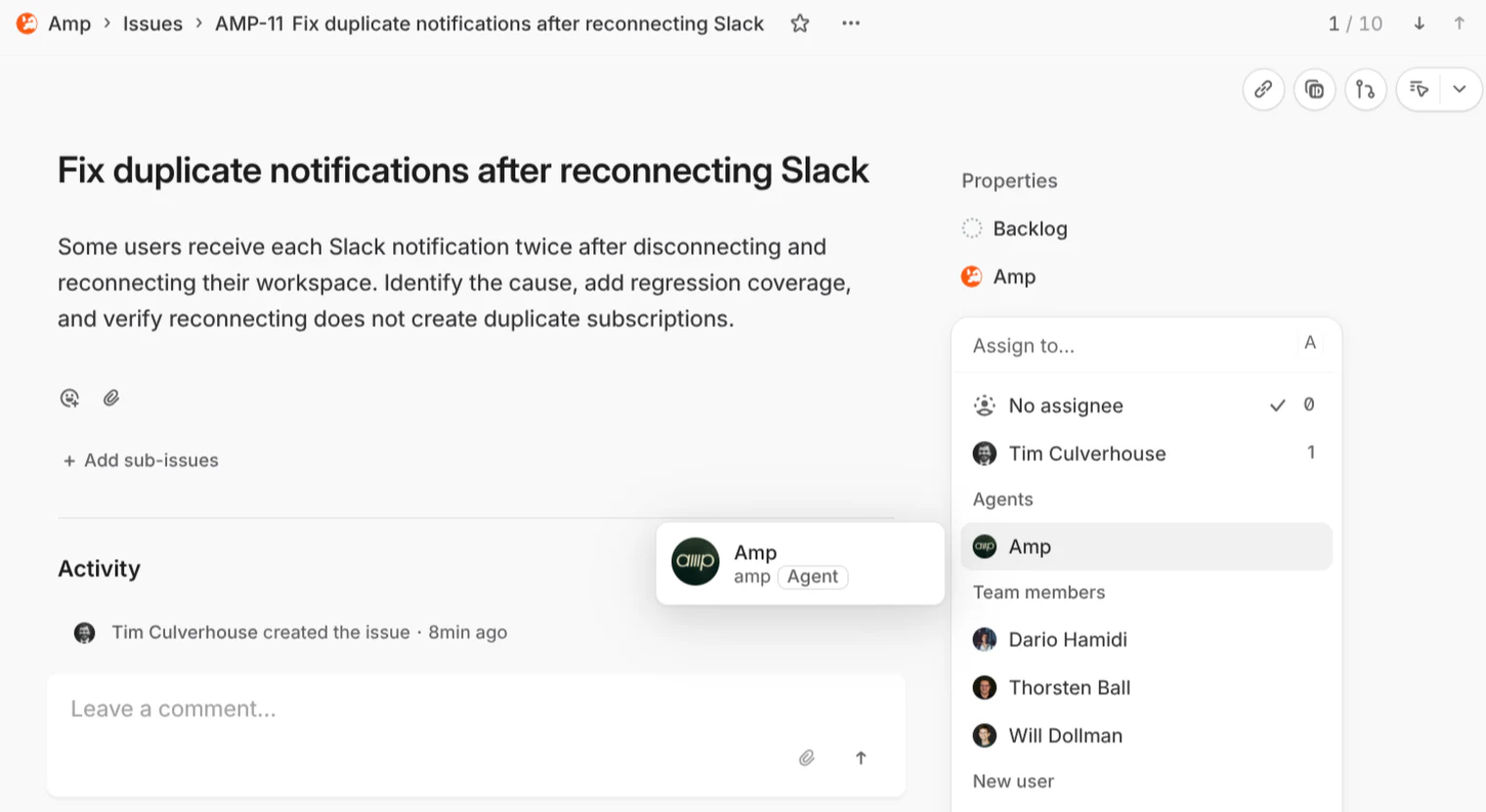
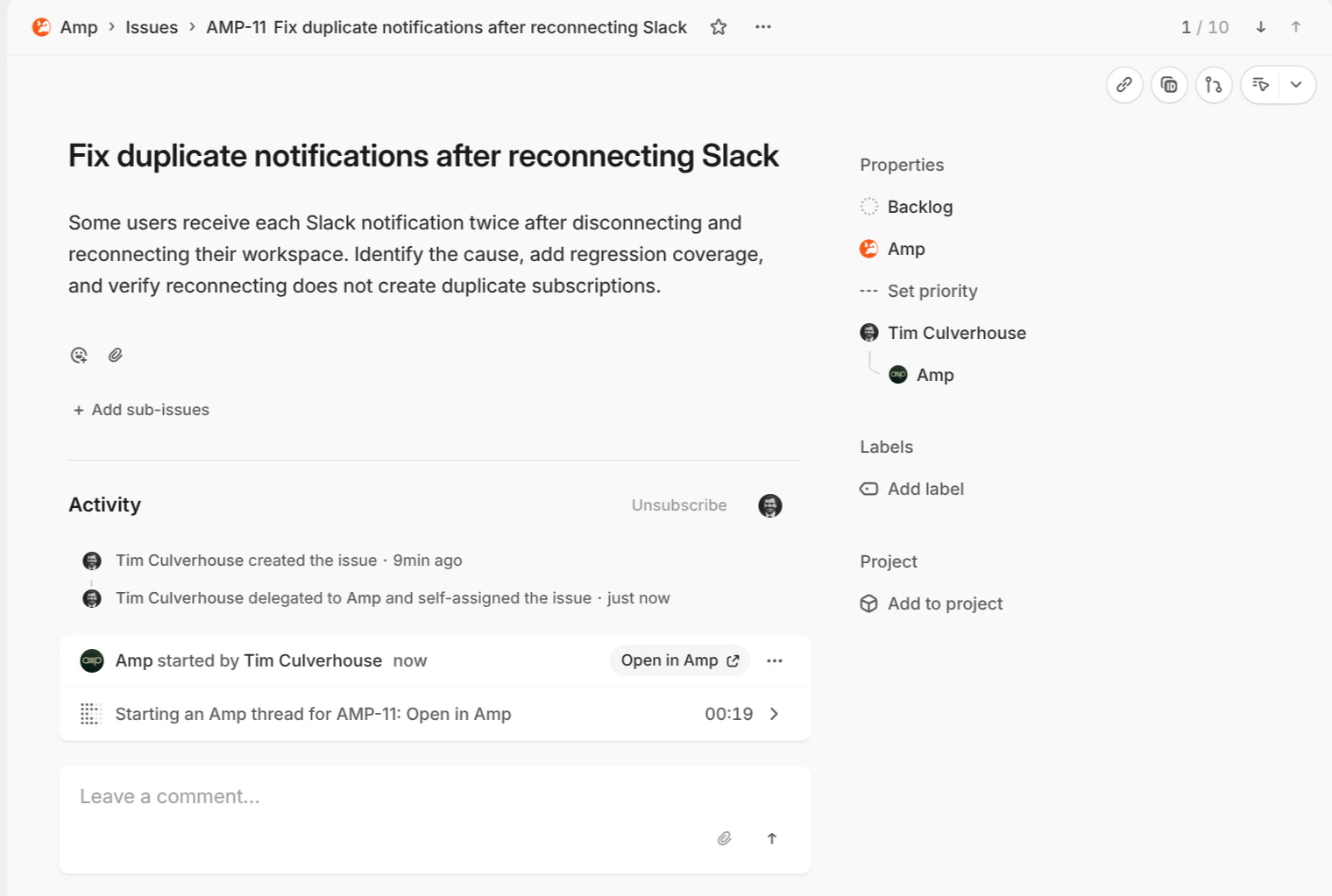
Assigning an issue to Amp in Linear will start a new Agent Session and generate a new orb. You can also start a session via @Amp. Amp will send its responses back to the same session and reply to messages received in the middle. The Agent Session will also appear in the Amp sidebar and can be viewed completely. Install the Amp agent to the Linear workspace and connect the Amp account to the Linear MCP to start using it.
Amp is now an agent in Linear.
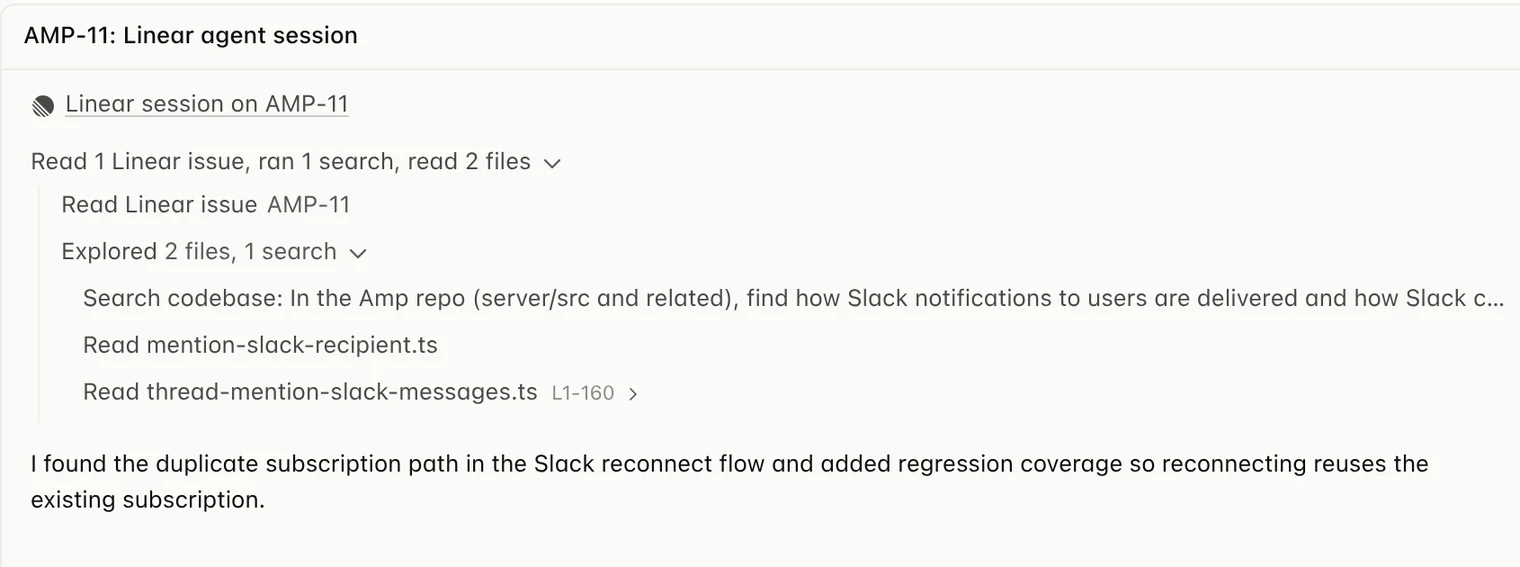
Assigning an issue to Amp starts a new Agent Session in Linear and spawns a new orb. You can also mention @Amp to kick off a session. Amp sends its response back to the same session and replies to messages sent along the way. The Agent Session also appears in your Amp sidebar and is fully viewable in Amp.
Assign Amp an issue in Linear.
Follow its progress in the Agent Session.
Then open the same conversation in Amp.
To get started, install the Amp agent in your Linear workspace and connect your Amp account to the Linear MCP in Settings → MCP & Integrations.

Read the docs to learn more.
Source: Amp News · ampcode.com